Remark
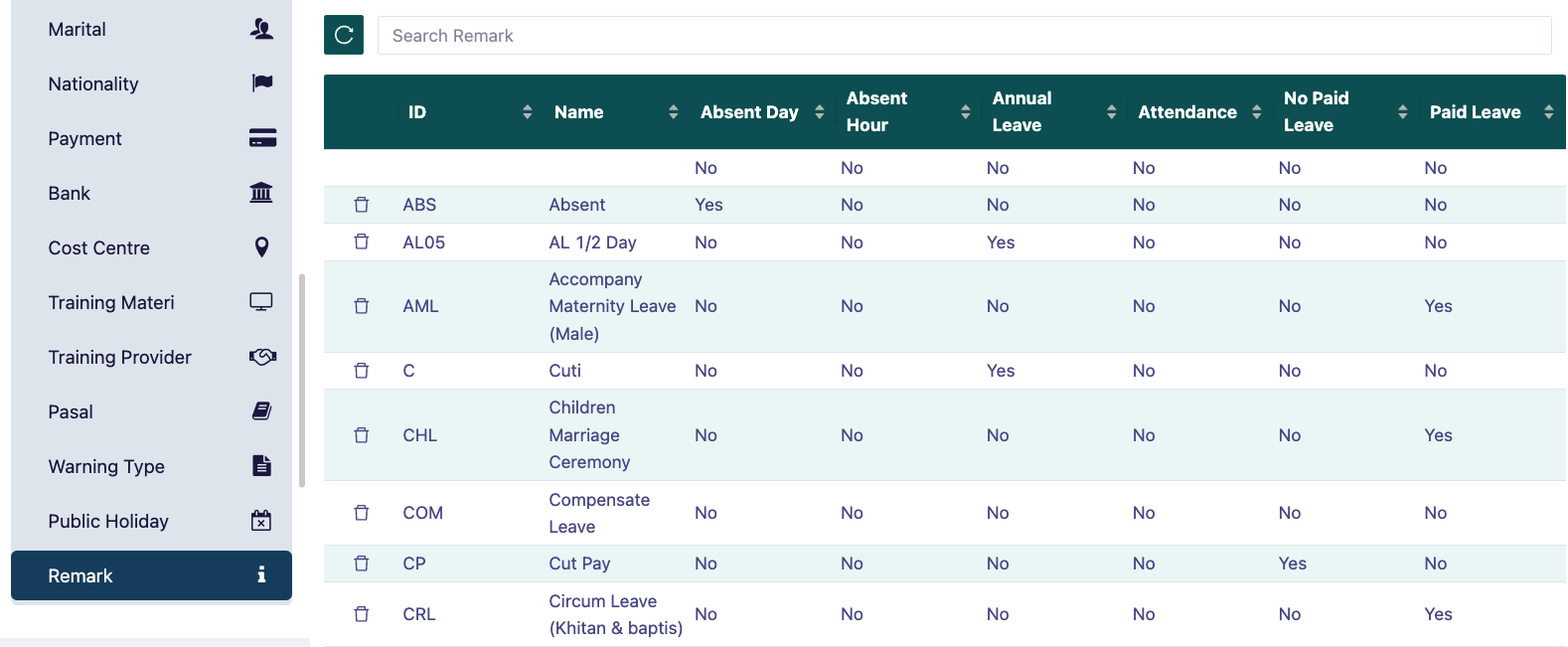
This menu is used to input additional details necessary for generating comprehensive reports. In the Remark menu, we enter information that marks employee absences. For example, AL (Annual Leave) is used to mark attendance entries indicating that an employee is on annual leave.
- To add a new remark, select the bottom row field and fill in the columns accordingly.
- In the Attend field, select 'Yes' if the remark counts as attendance; choose 'No' otherwise. For example, if the description is 'Absent', set Attend to 'No.'
- In the Absent Day field, select 'Yes' if the remark counts as an absent day, and 'No' otherwise.
- In the Absent Hour field, select 'Yes' if the remark counts as absent hours, and 'No' otherwise. For example, for 'Late,' set Absent Hour to 'Yes.'
- In the NPL field, select 'Yes' if the remark is counted as NPL (No Pay Leave), and 'No' otherwise. For example, if the description is 'Unpaid Leave,' set NPL to 'Yes.'
- In the Annual Leave field, select 'Yes' if the remark counts as annual leave, and 'No' otherwise.
- In the Paid Leave field, select 'Yes' if the remark counts as paid leave, and 'No' otherwise.
- To delete a remark, press the button next to the remark ID. The remark will be removed.
- Note: The codes created here will link with the formulas used in Classification.