Category
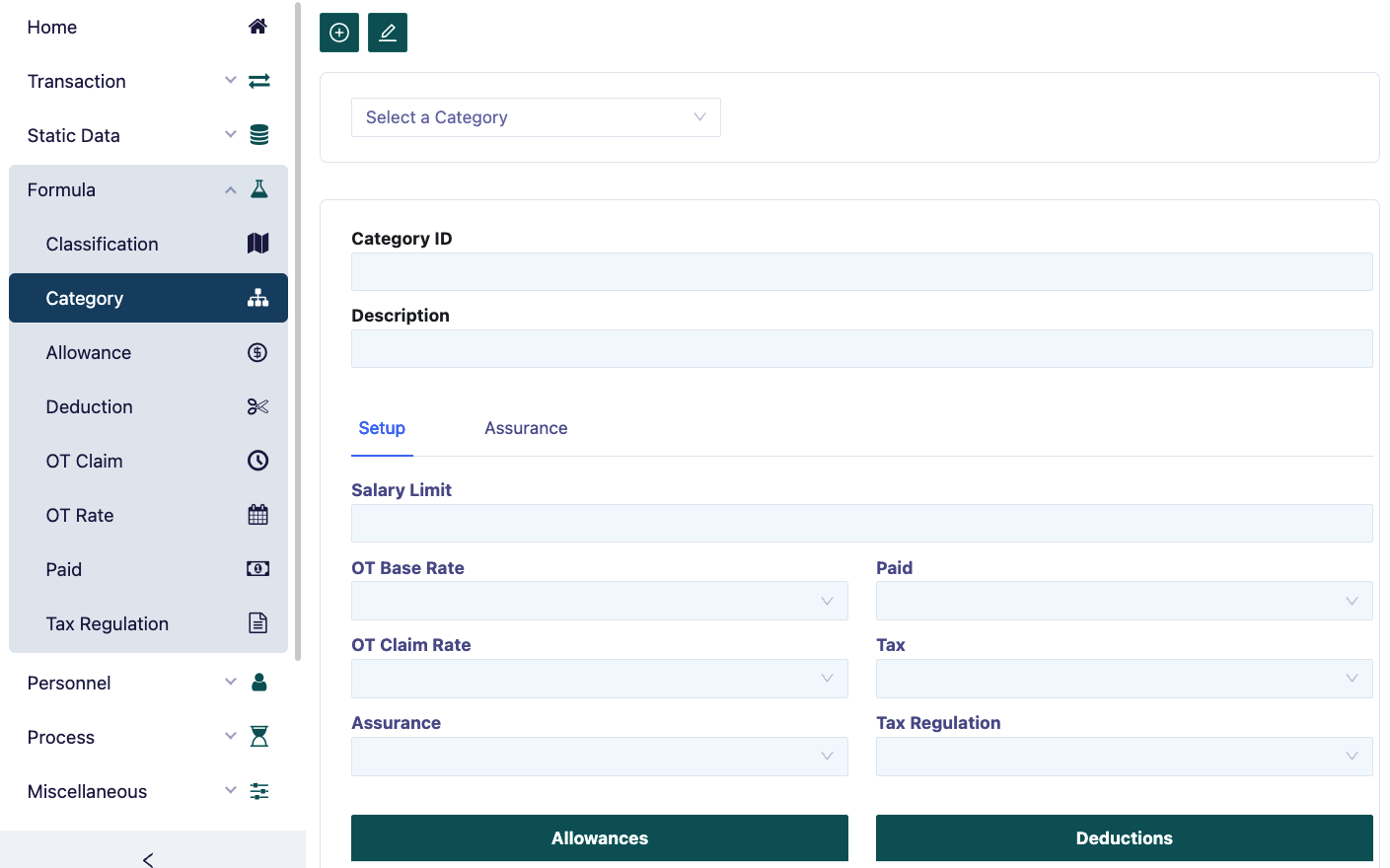
In the Category form, we will enter category data. Category data is used to group employees based on the same type of payment such as: Allowance, deduction, overtime claim, overtime rate, payment method, insurance or tax.
To add a new Category, press the button in the upper left corner of the form. Fill in the columns.
Setup
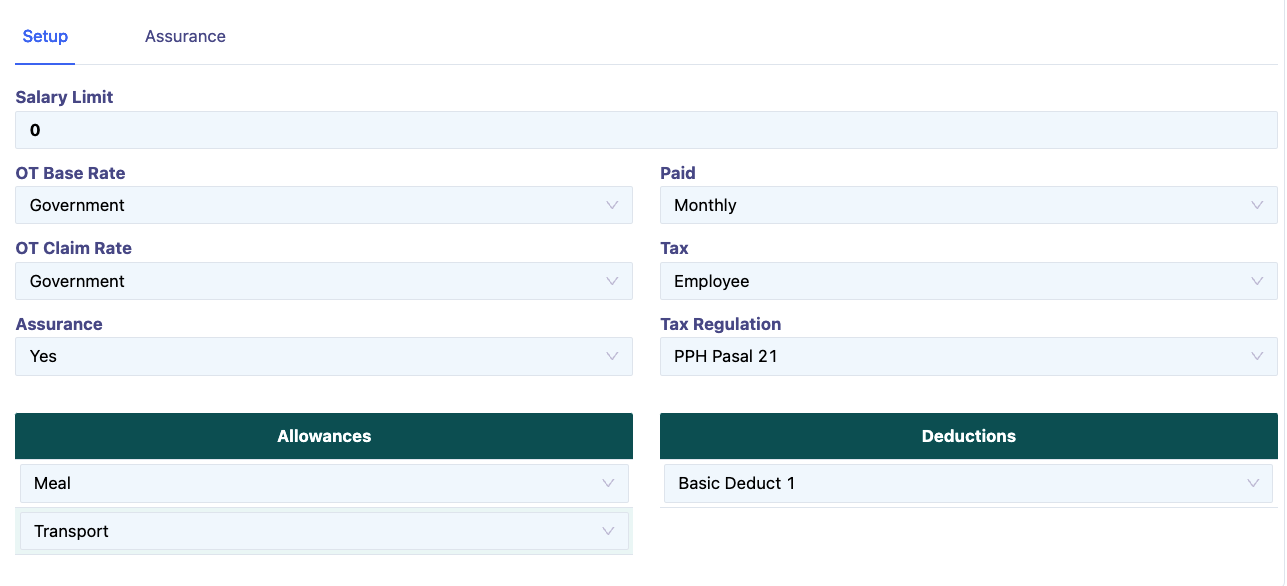
Filling in the Set Up menu is as follows:
In the Category ID field, type the code for the category to be filled in, Example: 001, 002 etc.
In the Description field, type the name of the category to be filled in, Example: Operator 1, Operator 2, Staff, Manager etc.
In the Salary Limit field, type the salary limit to be entered in the category.
In the OT Base Rate field, select the OT Rate to be used in the category. The OT Rate Base option will appear according to what we fill in the OT Rate menu. For further information, see the OT rate sub-chapter.
In the OT Claim Rate field, select the OT Claim to be used in the category. The OT claim option will appear according to what we fill in the OT Claim menu. For further information, see the OT claim sub-chapter.
In the Assurance field, select Yes, if the employee in the category is participating in the Jamsostek program. Select No, if the employee in the category is not participating in the Jamsostek program.
In the Paid field, select the Paid to be used in the category. The Paid option will appear according to what we fill in the Paid menu. Select Monthly, if the employee's salary in the category is monthly. Select Daily, if the employee's salary in the category is daily. Select Hourly, if the employee's salary in the category is hourly. For further information, see the Paid sub-chapter. In the Tax field, select the type of tax payment that will be used in the category. Select Employee, if the tax is borne by the employee. Select Company, if the tax is paid by the company. Select None, if the employee for the category is not subject to tax.
In the Tax Regulation field, select the type of tax that will be paid for the category. Select Article 21 Income Tax, if the employee in the category is subject to Article 21 Income Tax. Select Article 26 Income Tax, if the employee in the category is subject to Article 26 Income Tax.
In the Yearly Tax Regulation field, fill in the formula for the End of Year Tax Calculation, just select it.
In the Allowances column, select the type of allowance that will be received by the employee in the category. The type of allowance that appears is the result of filling in the allowance in the Allowance menu.
In the Deduction column, select the type of deductions that will be received by the employee in the category. The type of deduction that appears is the result of filling in the deduction in the Deduction menu.
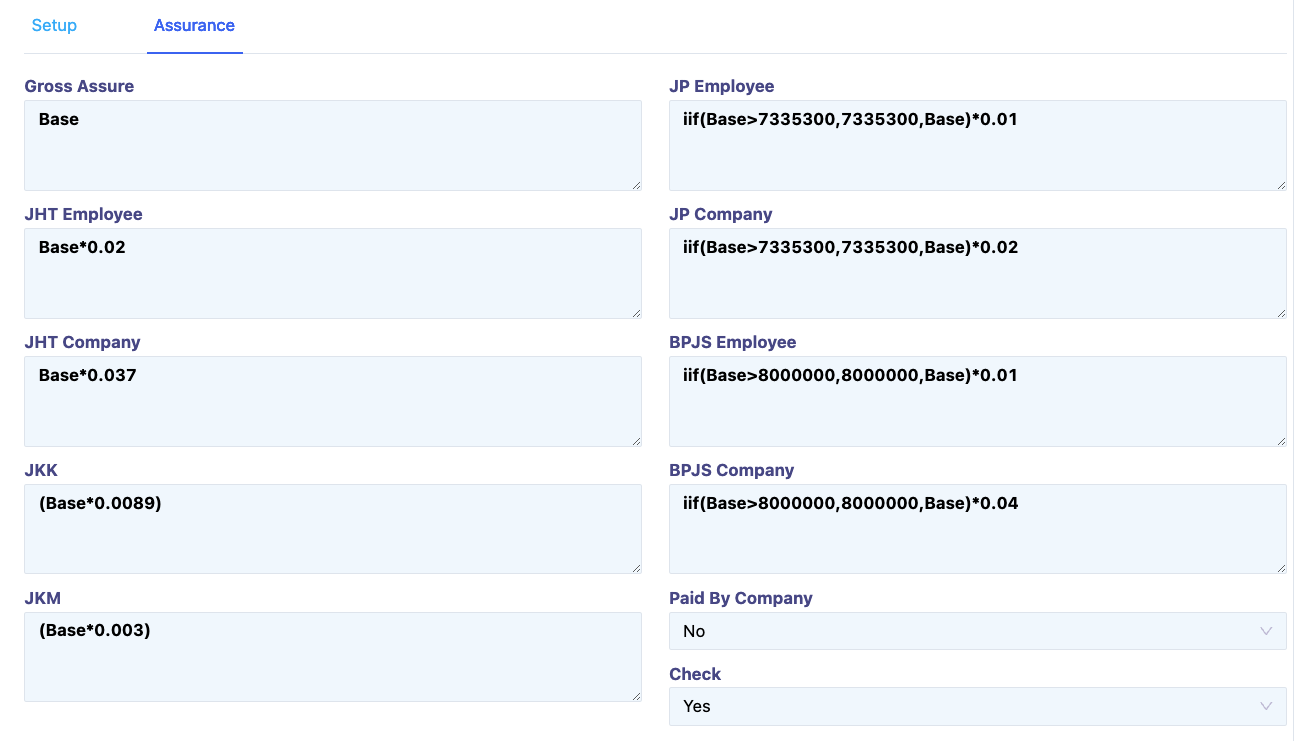
Assurance