Allowance
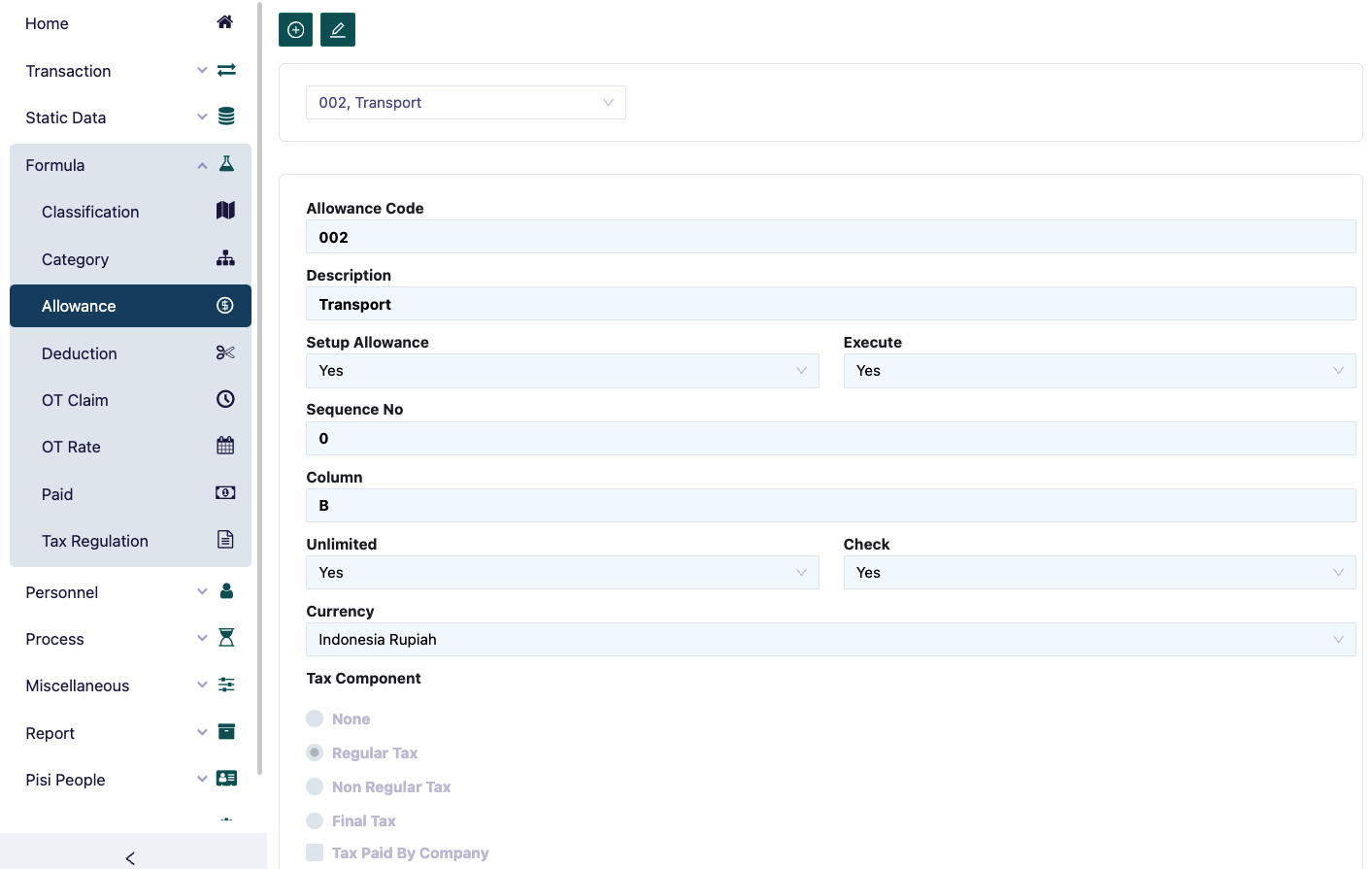
This allowances menu functions to define all types of allowances provided by the company.
If you want to add new Allowances, press the button located in the upper left corner.
The steps to fill in the allowance are as follows:
In the Allowance Code field, type the allowance code to be filled in.
In the Description field, type the name of the allowance.
In the Sequence No field, type the sequence number for the allowance. This sequence number will function to provide instructions to which allowance program will be processed first.
In the column field, type the column for this allowance, this is useful for grouping an allowance, for example, meal allowance is divided into two: staff meal allowance and operator meal allowance, in the report both of these allowances are desired in the same column, for example B, then type B. for allowances, the columns provided are from column A to column O.
In the Unlimited field, select 'Yes' if the allowance will be given to employees continuously. For example: meal allowance, transportation, attendance, etc. Select 'No' if the allowance is not received continuously. For example: THR allowance, Bonus, etc.
In the Check field, select 'Yes' if the allowance has been filled in correctly. If the choice is still 'No', the payroll posting process will fail.
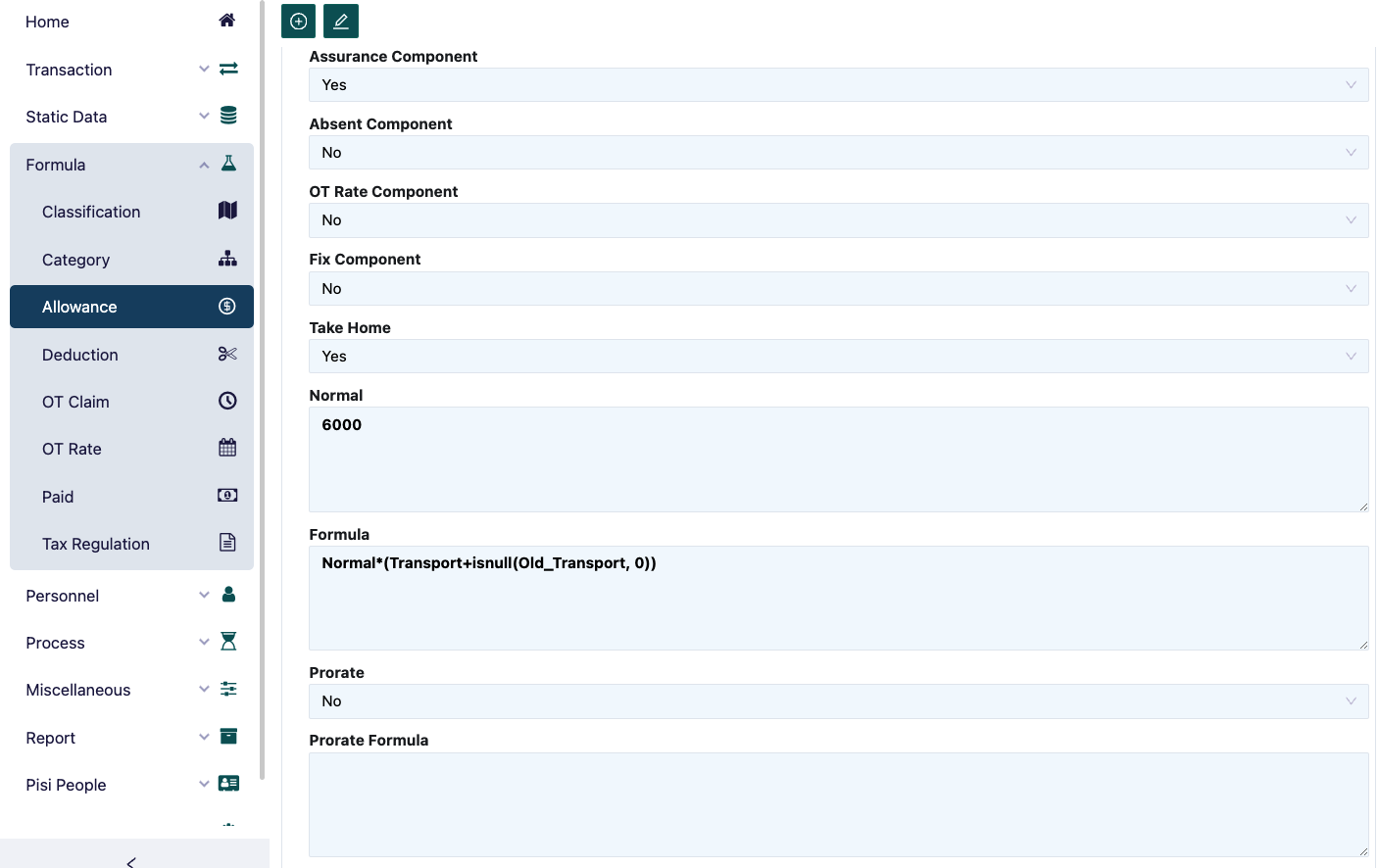
The steps to fill in the allowance are as follows:
- In the Currency field, select the type of currency that will be used for the payment of the allowance.
- In the Normal field, type the value of the allowance. Example: 7500. This normal field can be used by the formula field.
- In the Formula field, type the formula for the allowance. Example: Meal allowance: Normal x meal. The logic is that the number of Meals calculated for attendance will be multiplied by the Normal number, which is 7500.
- In the Prorate field, select 'Yes' if the allowance will be prorated. Generally prorated if the allowance value is not formulated (if not formulated, the allowance value will remain unrelated to attendance) and this prorate is for employees who resign or start work in the middle of the payroll period.
Prorate is a condition where a situation is not paid in full but is divided according to its proportion. In the Prorate Formula field, type the formula for prorate.
- In the Set Up Allowance field, select 'Yes' if the allowance will be given to all or a number of employees with the same allowance value, then this allowance will appear in the Category menu in the Allowances field. Select 'No' if the allowance is given to employees where the allowance value is different between one employee and another, then this allowance will appear in the Employee menu in the allowance field.
- In the Execute field, select 'Yes' if the allowance is enforced and select 'No' if the allowance is no longer enforced.
- In the Assurance Component field, select 'Yes' if the allowance is used as a component of the Jamsostek calculation, select 'No' if it is not used as a component of the Jamsostek calculation.
In the Tax Component field, provide a TIC mark if the allowance is used as a component of tax calculation where the tax calculation has 3 conditions, namely:
- As Regular Tax, it means that every month it will be included as a tax component
- As Non Regular tax, it means that the allowance is not given every month, and the tax calculation will be different, for example THR and Bonus
- As Final tax, it means that the allowance will be directly subject to final tax which already has its own tax rules, for example Severance Pay
- Tax By Company to provide information if a certain allowance will be paid by the company. Leave the TIC blank if it is not used as a component of tax calculation.
In the Absent Component field, select 'Yes' if the allowance is used as a component of absence calculation, select 'No' if it is not used as a component of absence calculation.
In the OT Rate Component field, select 'Yes' if the allowance is used as a component of overtime rate calculation, select 'No' if it is not used as a component of overtime rate calculation.
In the fixed component field, select ‘Yes’ if the allowance is a fixed component, and select ‘No’ if it is not used.
In the Take Home field, select ‘Yes’ if the allowance is given at the time of salary payment, select ‘No’ if it is not given at the time of salary payment. Example: medical money is given in cash when the employee claims but the cash value is still included in the payroll if the allowance will be used as a component for calculating taxes.